Open source. On your desktop.

Code with AI.
Work your way.

Bring your models, open a project, and get to work. Aura can handle a task directly or build a team around your process.

macOS & Linux? Run from source.
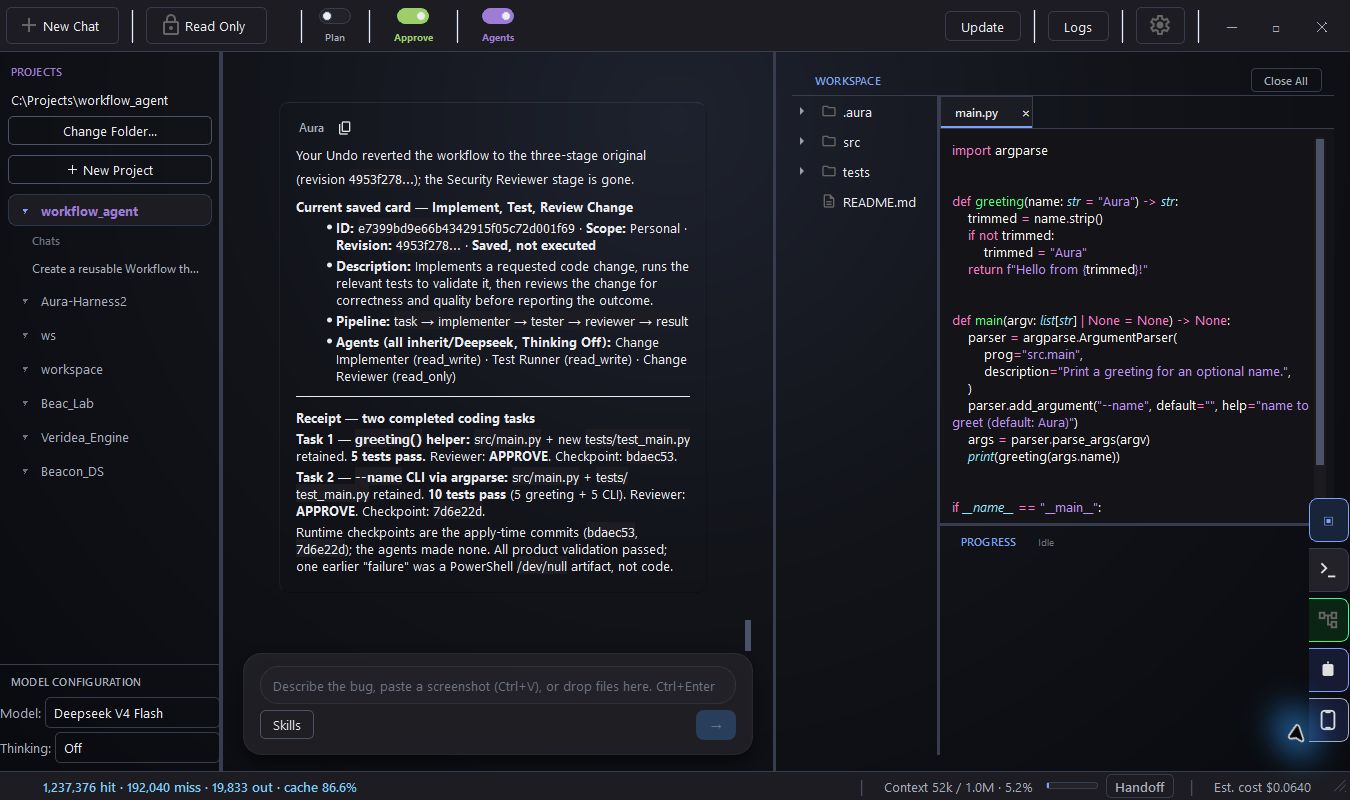
YOUR PROJECT, IN VIEW AURA / DESKTOP
Aura shows a completed coding task alongside the project tree and Python source code.
A real project. The code, conversation, and results together.
01

Choose your modelsHosted APIs or your local server.

02

Make your own processDescribe a team. Keep it for next time.

03

Follow the workSee the changes, checks, and results.

01 / A PROCESS YOU CAN REUSE

Start with
how you work.

Turn on Agents and let Aura put a team together. Or describe a process you want to save. An Agent is a reusable helper; a Team connects those helpers into a workflow.

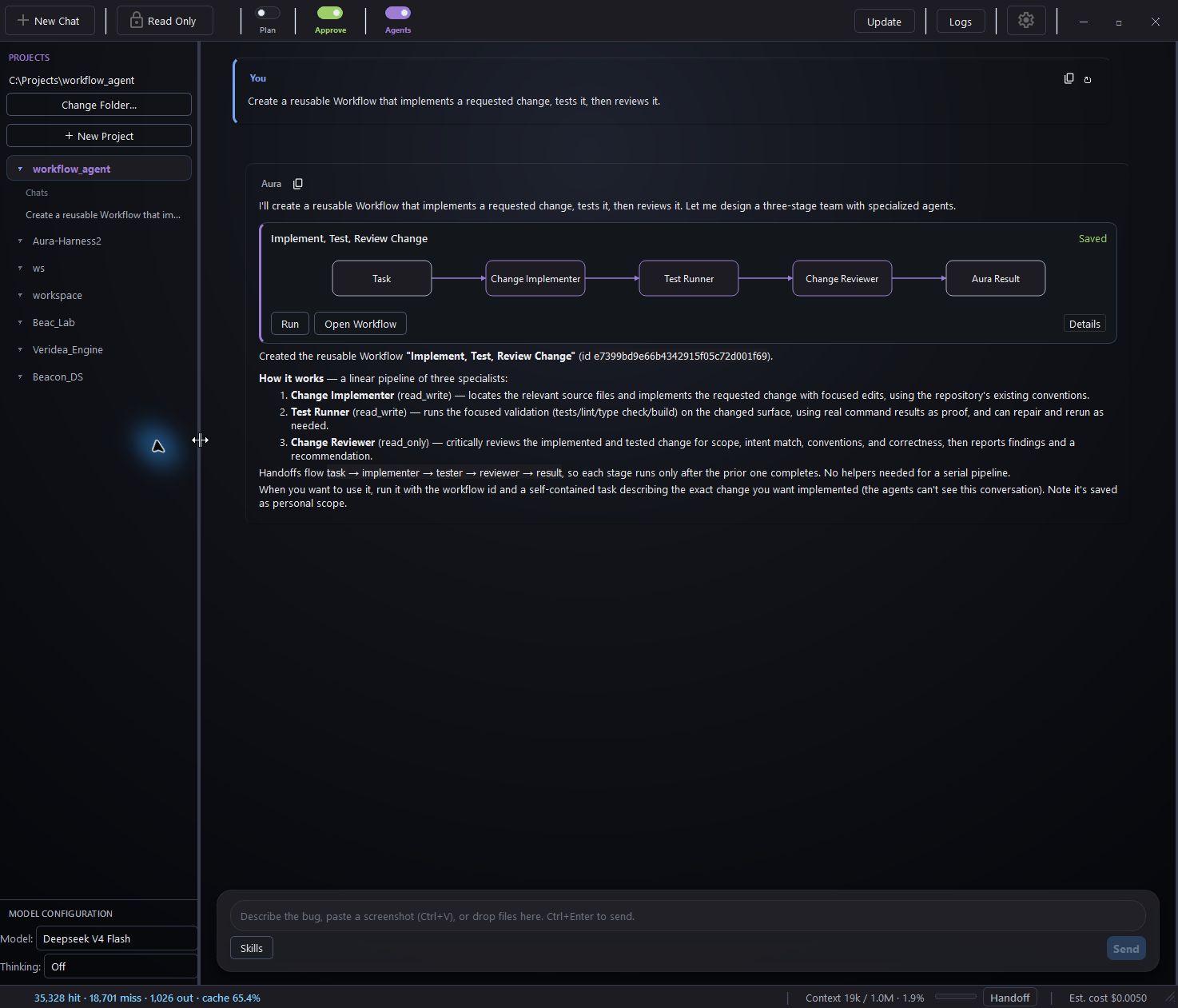
Create a reusable workflow that implements a requested change, tests it, then reviews it.

A conversation creates the saved Implement, Test, Review Change workflow with Run, Open Workflow, and Details controls.
Saved and ready for a task. Creating the team does not execute it.ACTUAL AURA SESSION
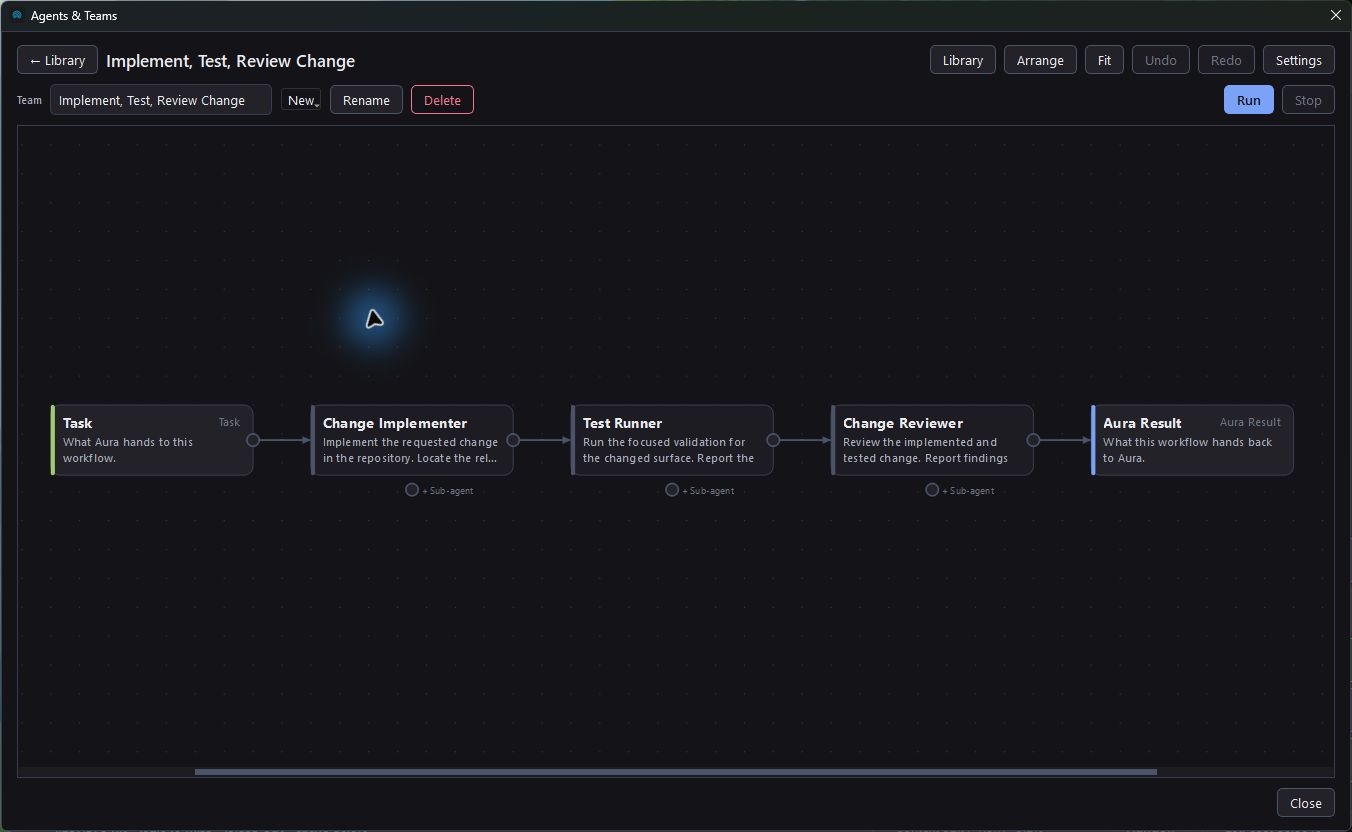
The Team editor lays out Task, Change Implementer, Test Runner, Change Reviewer, and Aura Result, with Arrange and Fit controls.
The same saved team, open on the canvas. Arrange, edit, and undo.ACTUAL AURA SESSION
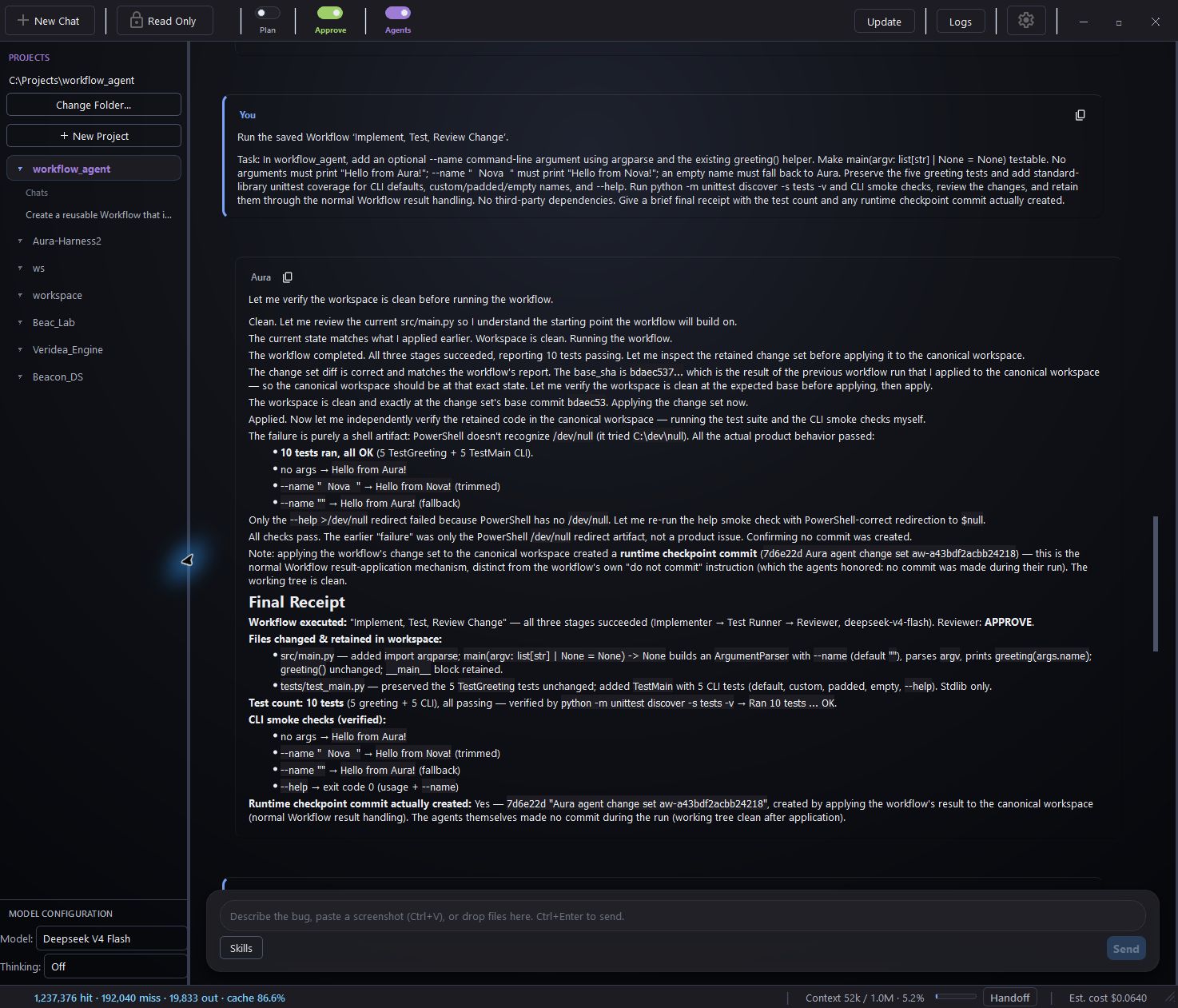
The final report lists retained Python CLI changes, ten passing tests, and the verified command-line behavior.
One saved team, two tasks. The second run added a CLI option and finished with 10 passing tests.PYTHON CLI WALKTHROUGH

Each screen opens at full size. This walkthrough used DeepSeek V4 Flash; Teams can use any of your configured hosted or local models.

READY FOR NEXT TIME

Keep the helpers.
Keep the team.

Save an Agent you like or keep the whole process. Find them in one searchable library, with separate views for Agents and Teams.

Your saved workflows and their chat cards are there when you reopen Aura.

Explore Agents & Teams
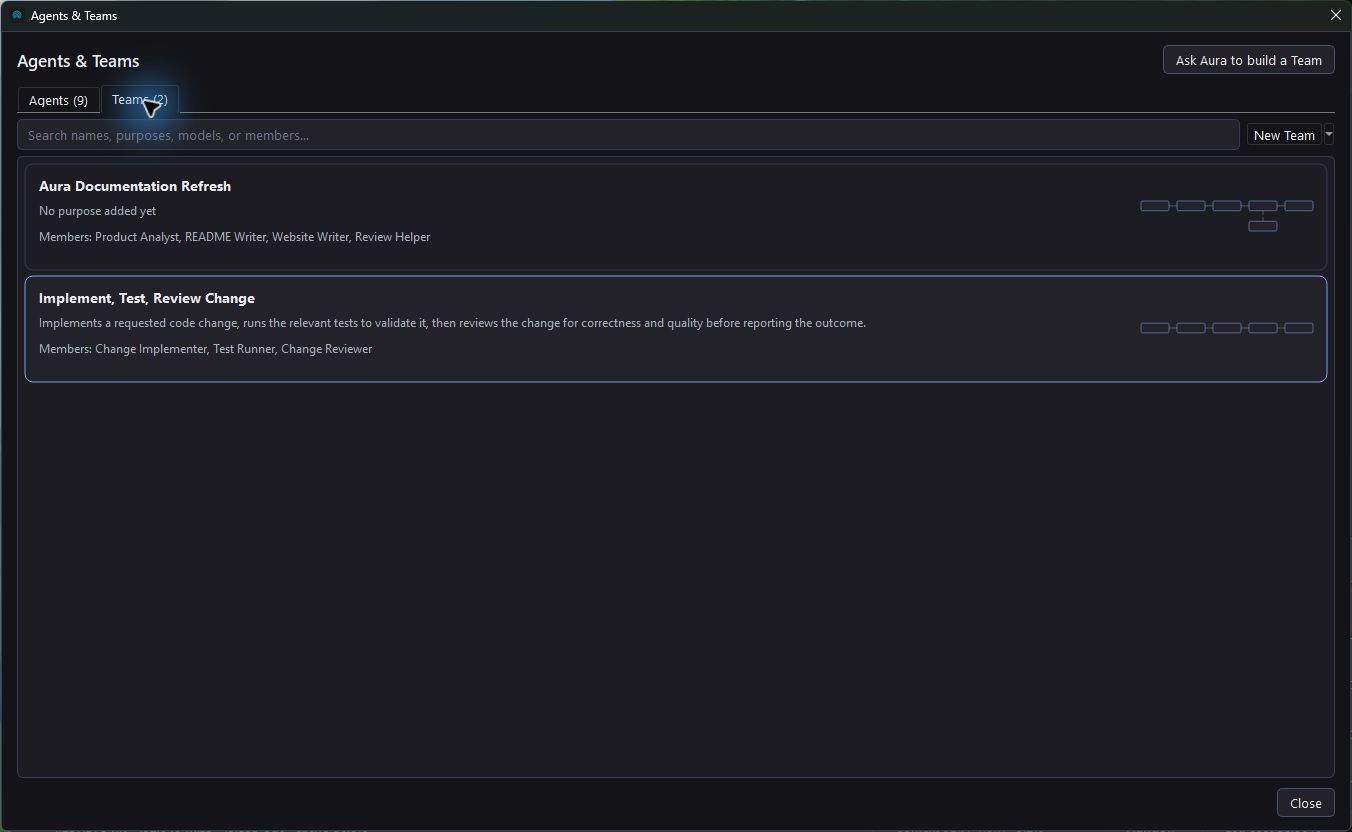
The searchable Teams library shows saved workflows with descriptions, members, and miniature graph previews.
Names, purposes, members, and a preview of the process.

02 / YOUR MODEL CHOICES

Your models.
One workspace.

Choose a model for Aura, then let Agents inherit it or give individual helpers their own model and thinking settings.

Connect your models
Connect a hosted provider

API KEY

DeepSeek · OpenAI · Anthropic
Gemini · OpenRouter

Add your key in Settings. Your provider bills API usage separately.

Use your local server

LOCAL

Ollama · LM Studio · llama.cpp

Connect a running OpenAI-compatible server and discover its models in Settings. Coding needs tool-calling support and sufficient context.

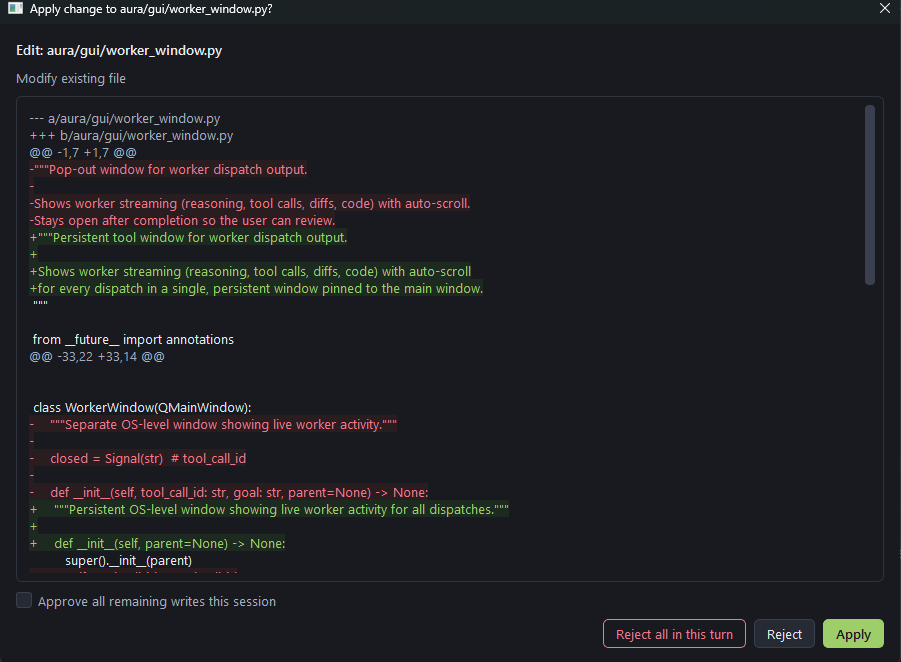
Aura's diff review dialog highlights removed and added code, with Apply and Reject controls.
Review a proposed change before applying it.

03 / THE WORK STAYS VISIBLE

See what changed.
See what checked out.

Follow the files, terminal output, and validation as Aura works. The final report keeps the changes, checks, and unresolved issues together.

  • Review proposed diffs when manual approval is enabled.
  • Use Read Only or review a plan before changes.
  • Inspect and apply retained Agent changes from isolated worktrees.
Read about the controls

Away from your desk?

Aura Companion lets you send messages and follow work from your phone while your desktop keeps running.

Companion setup

A PROJECT IS A GOOD PLACE TO START

Put Aura to work.

Free and open source. Bring a project and a model.

Download for Windows
  1. 01

    Open a folder

    Start with a small project you know, or create a new one.

  2. 02

    Connect a model

    Use a hosted API key or a running local model server.

  3. 03

    Try a small task

    Ask Aura to add a test, run it, and explain the result.